Chapter 11 / 28
Accessing Vault Using the Browser-Based UI
HashiCorp Vault For Beginners6 min read
So far, we've been interacting with Vault exclusively using the command line. That’s powerful—but let’s be honest: sometimes, we all appreciate a nice visual interface. In this chapter, we’ll explore the Vault UI, which provides a point-and-click way to manage secrets, auth methods, and more.
Let’s talk about the different ways to access Vault and what the UI is (and isn’t) good for.
Vault provides three primary interfaces:
| Interface | Description | Best Use Case |
|---|---|---|
| CLI | The command-line interface we've used so far. | Day-to-day admin tasks, scripting, automation. |
| HTTP API | The most complete way to interact with Vault. | Used by applications and integrations. |
| UI (Web Interface) | A browser-based dashboard. | Good for exploring, learning, and quick operations. |
Important: The Vault UI is the least feature-rich interface. Some advanced features (like AppRole pull-based Secret ID) can only be done via CLI or API.
Enabling and Accessing the UI
The Vault UI is enabled by default in most Vault images if the config has the following line. Have a look at your config file present in side the vault-data/config/vault-config.hcl folder
ui = true
In case you want to disable the UI, simply set it to false in your config file and restart the container using our same docker start command.
ui = false
That’s it. Disabling the UI might be useful in high-security production environments.
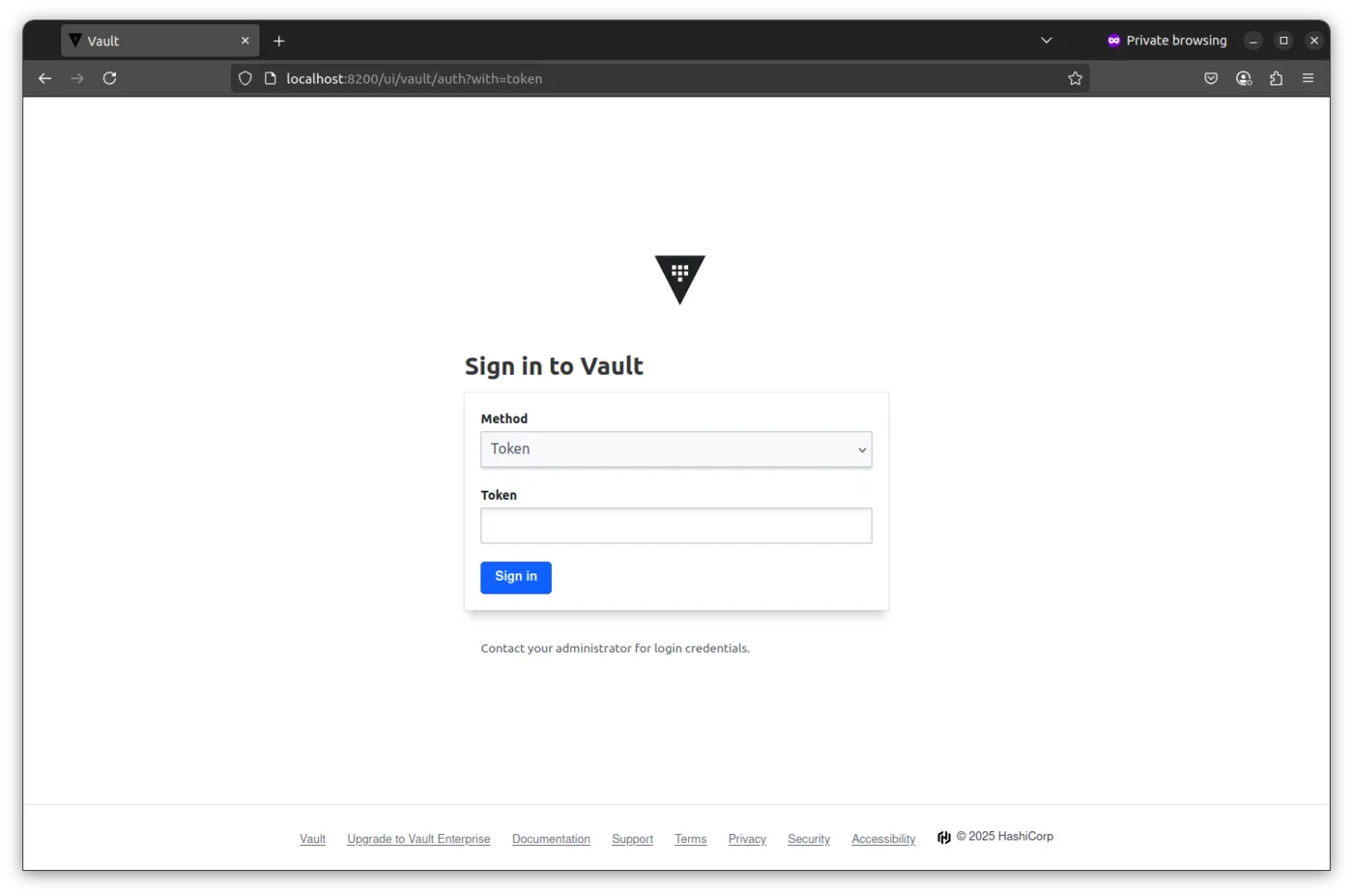
Once your container is running with ui = true, you can access the UI by opening below URL in your browser.
http://localhost:8200
You can login at vault from UI by using the root token you received during vault operator init.
Hands-On – Let’s use the UI to Manage a Secret Engine
Let’s now perform some real operations using the UI. You’ve already done these with the CLI—now let’s repeat them visually.
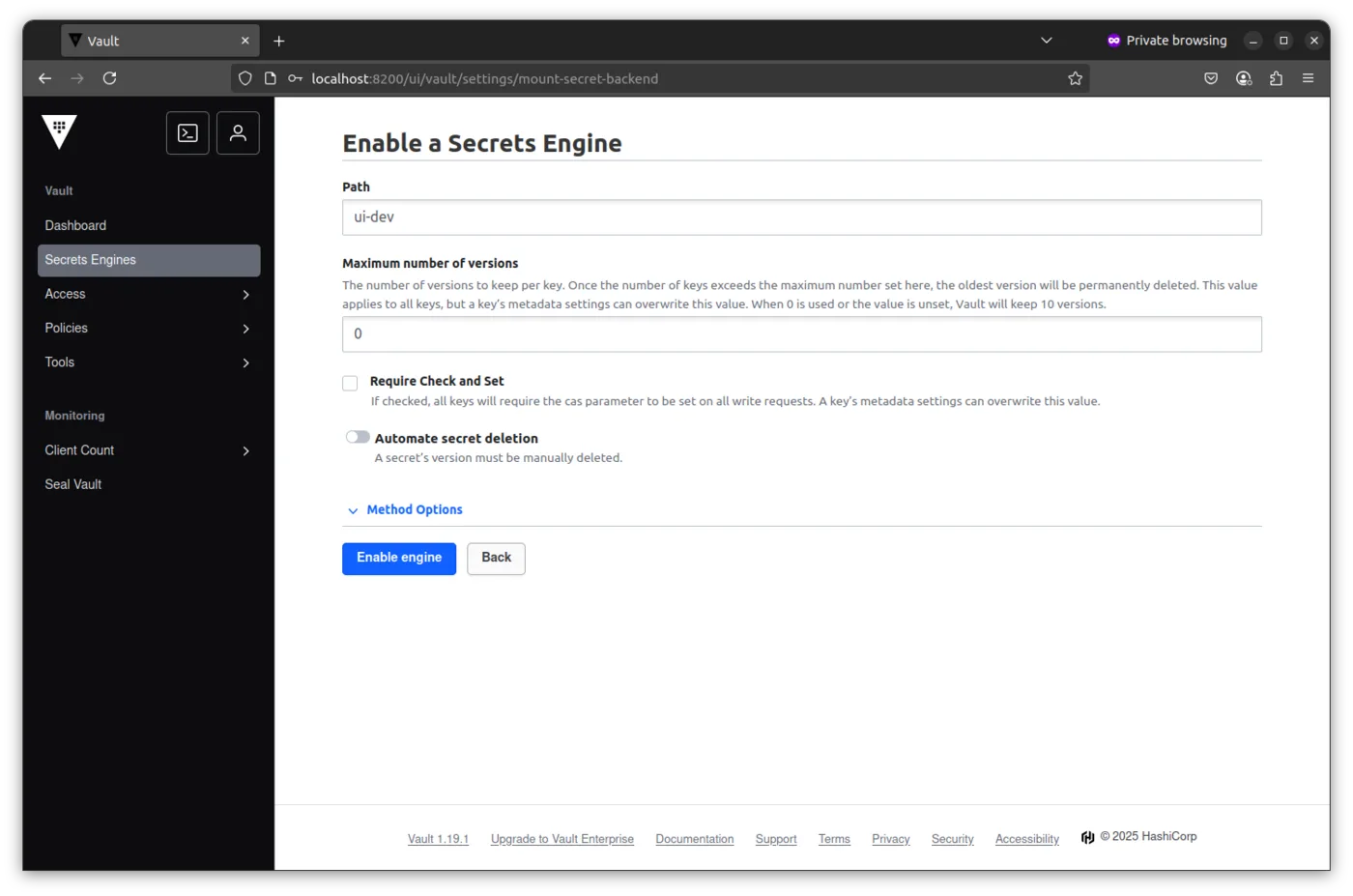
1. Enable KV Secret Engine at ui-dev
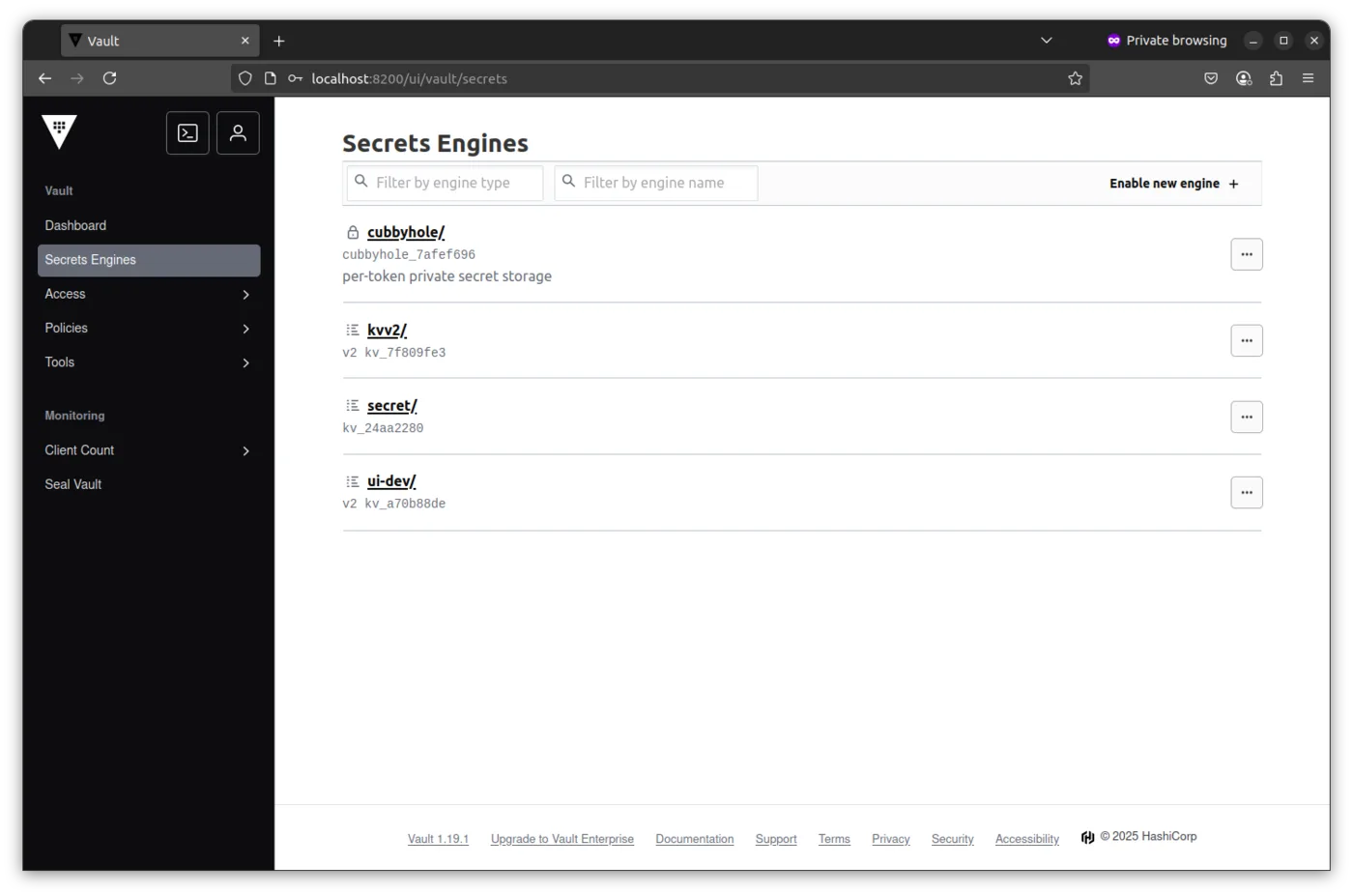
- Go to Secrets Engines → Enable new engine
- Choose KV
- Set Path to
ui-devand let all the value as is. - Click Enable Engine
Done. You’ve created a versioned secret engine at ui-dev.
\
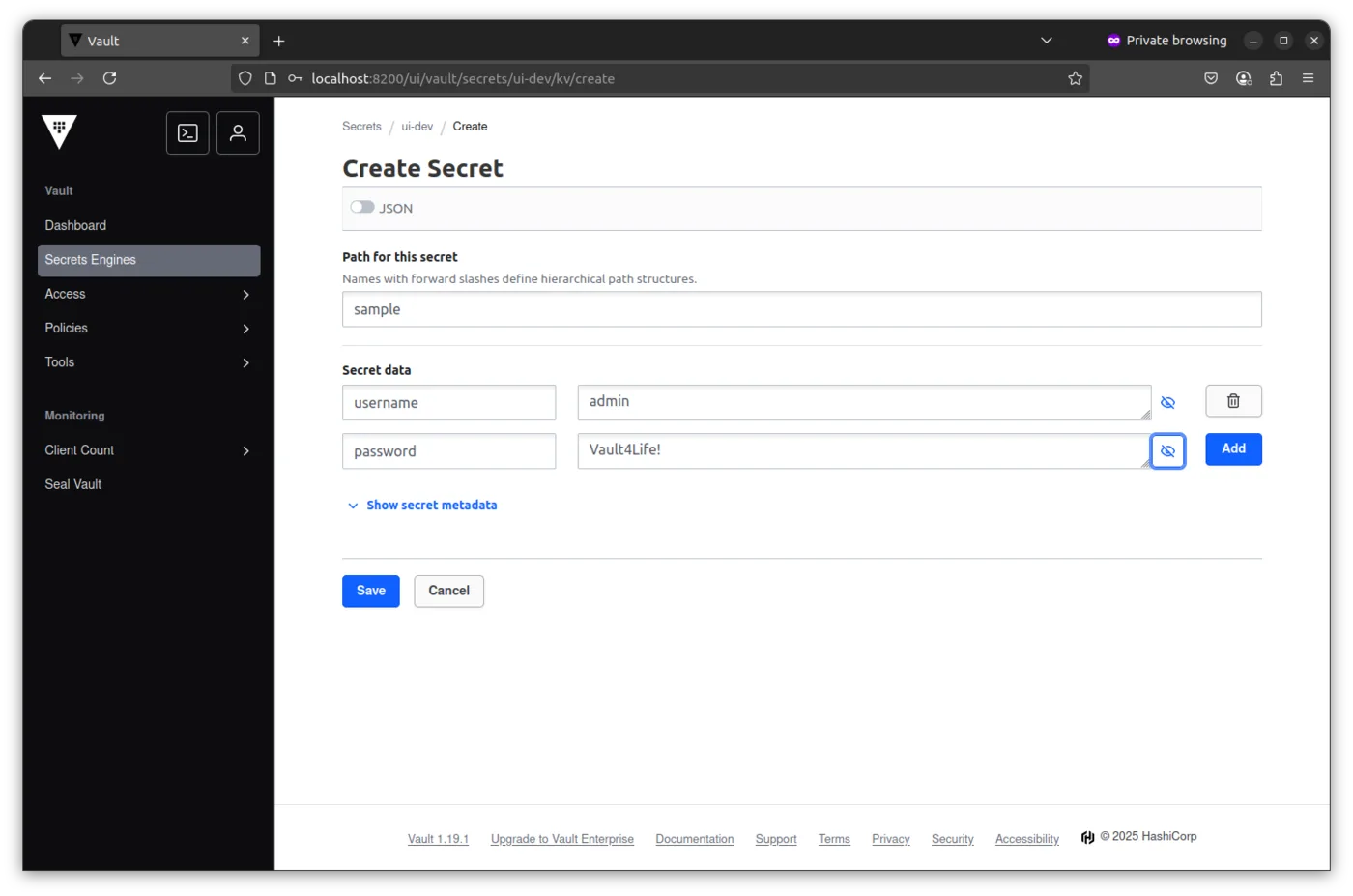
2. Put a New Value
- Click into
ui-dev - Click Create secret
- Set the “Path for this secret” to
sample - Under Secret data, add key:
username, value:admin - Add another key:
password, value:Vault4Life! - Click Save
You’ve just written data to ui-dev/sample.
3. List All Values
- From the “Secret Engines” home page, click on “ui-dev”
- You’ll see all paths inside this engine
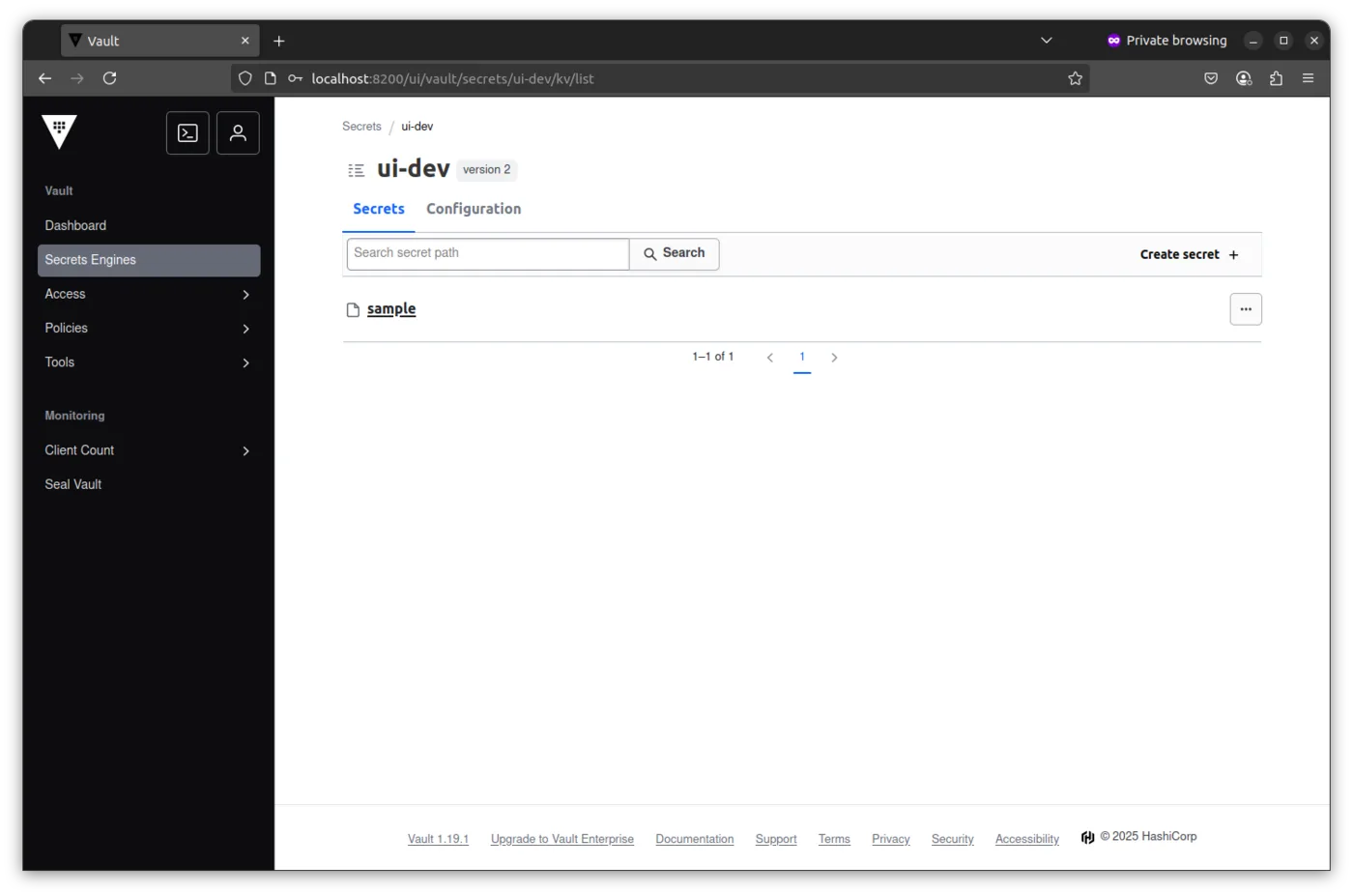
Each listed path is a secret entry
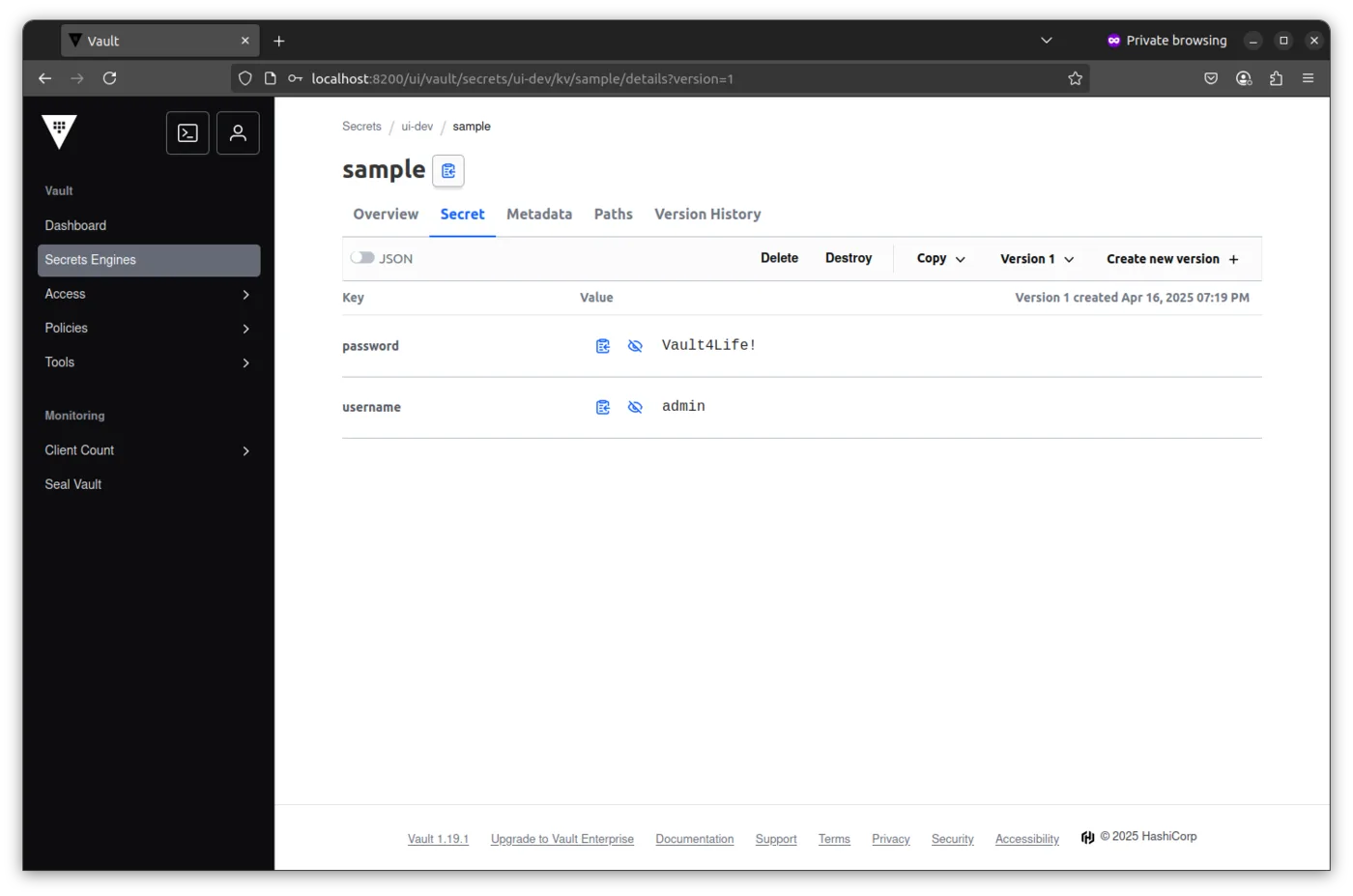
4. Read the Value
- Now click on the “Secret” tab, you’ll see the key-value pairs
- You can copy the values from here for use elsewhere
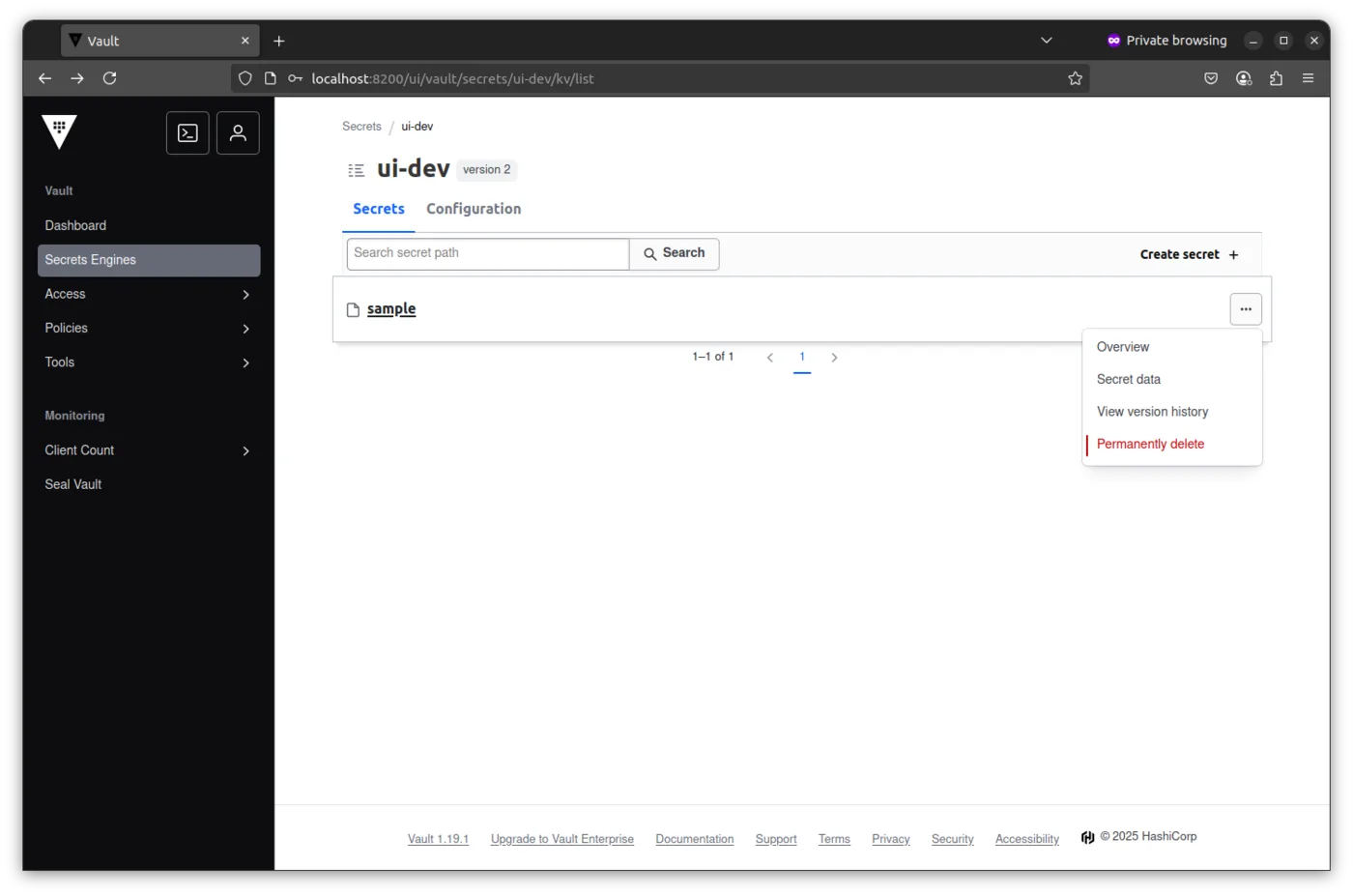
5. Delete a Value
- Now go back to the list page
- Choose the three-dot menu (⋮) aginst the “Sample” avaliable on the right handside.
- Click on “Permanently delete”
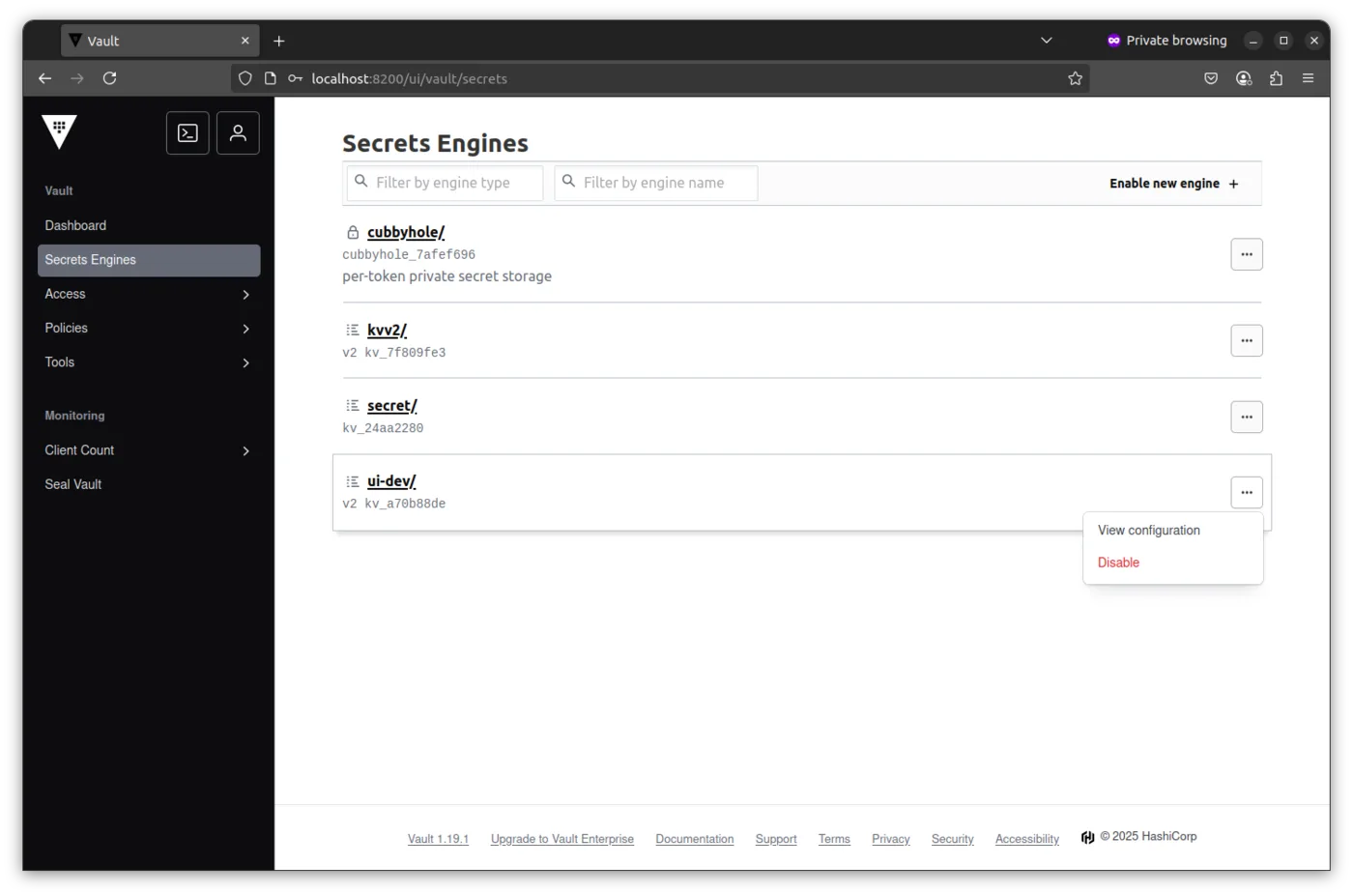
6. Disable the Secret Engine
Once you're done experimenting:
- Go to Secrets
- Find
ui-devin the list - Click the three-dot menu (⋮)
- Click Disable
This will completely remove the secret engine and all the secrets under it.
- Vault offers CLI, HTTP API, and UI interfaces.
- The API is the most powerful and flexible.
- The UI is useful for quick access and exploration but doesn’t support every feature.
- You can disable the UI in production for tighter security.
- We practiced enabling and managing secrets visually using the KV v2 engine.
Even though the UI is convenient, remember that anything done through the UI can also be done via API calls—this is important when scaling up or automating Vault in real systems.