Chapter 6 / 28
KV v2: Versioned Secrets
HashiCorp Vault For Beginners6 min read
In our earlier chapters, we used the KV (Key-Value) secrets engine in its basic form — KV v1. Simple. Fast. No versioning. You put a secret in, you get it out. That’s it.
But what if you accidentally overwrite a secret? Or delete something important? Or just want to know what changed and when?
That’s where KV v2 comes in.
What is KV v2?
KV v2 is a versioned key-value store. It gives you:
- Version history for secrets
- Soft deletes (you can undelete!)
- Metadata tracking (who, when, what)
- And a little peace of mind
Basically, it’s the “undo” button for your secrets.
Now, let’s attach to the Vault container and login using root token.
Enabling KV v2
Just like KV v1, you enable KV v2 at a path. The difference? You need to tell Vault to use the versioned option explicitly.
vault secrets enable -path=kvv2 kv-v2
This creates a new mount point at kvv2/ using the KV v2 engine.
Note: You can call this path anything (like
secrets/,apps/, etc.). Just remember: the path is part of the API. More on paths in the next section.
Putting Secrets into KV v2
Unlike KV v1, writing to KV v2 needs a slightly different path — /data/ is required.
vault kv put kvv2/project1/api key=supersecret123
This:
- Stores a secret at logical path
kvv2/project1/api
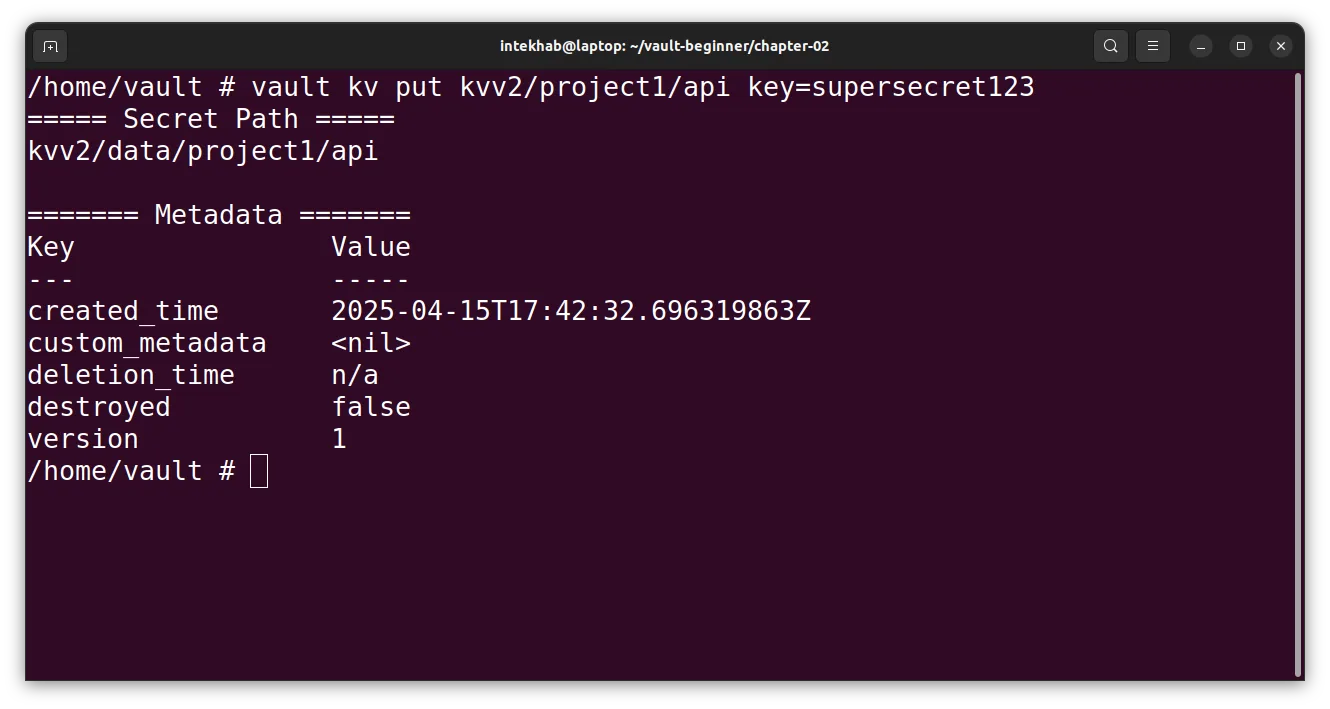
Automatically saves it as version 1
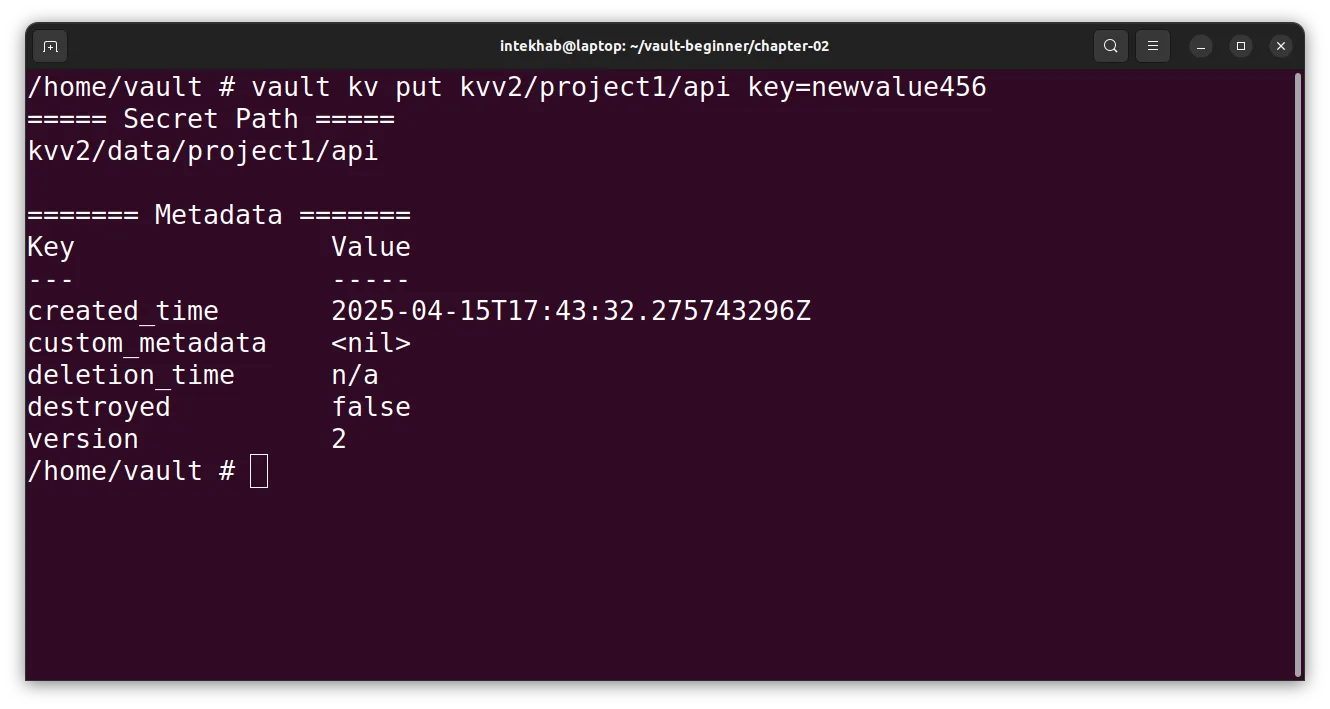
If you do it again with new data:
vault kv put kvv2/project1/api key=newvalue456
Boom — that’s version 2. Vault keeps the old one in the background.
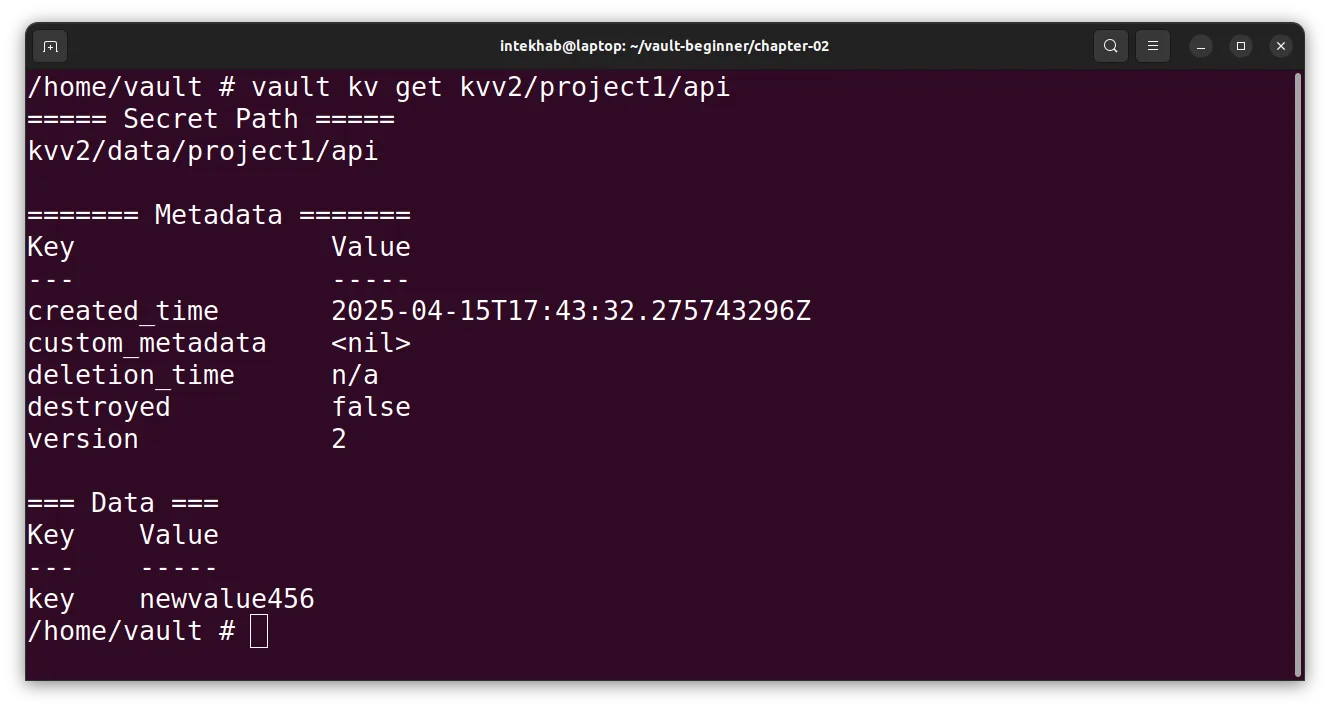
By default, Vault gives you the latest version:
vault kv get kvv2/project1/api
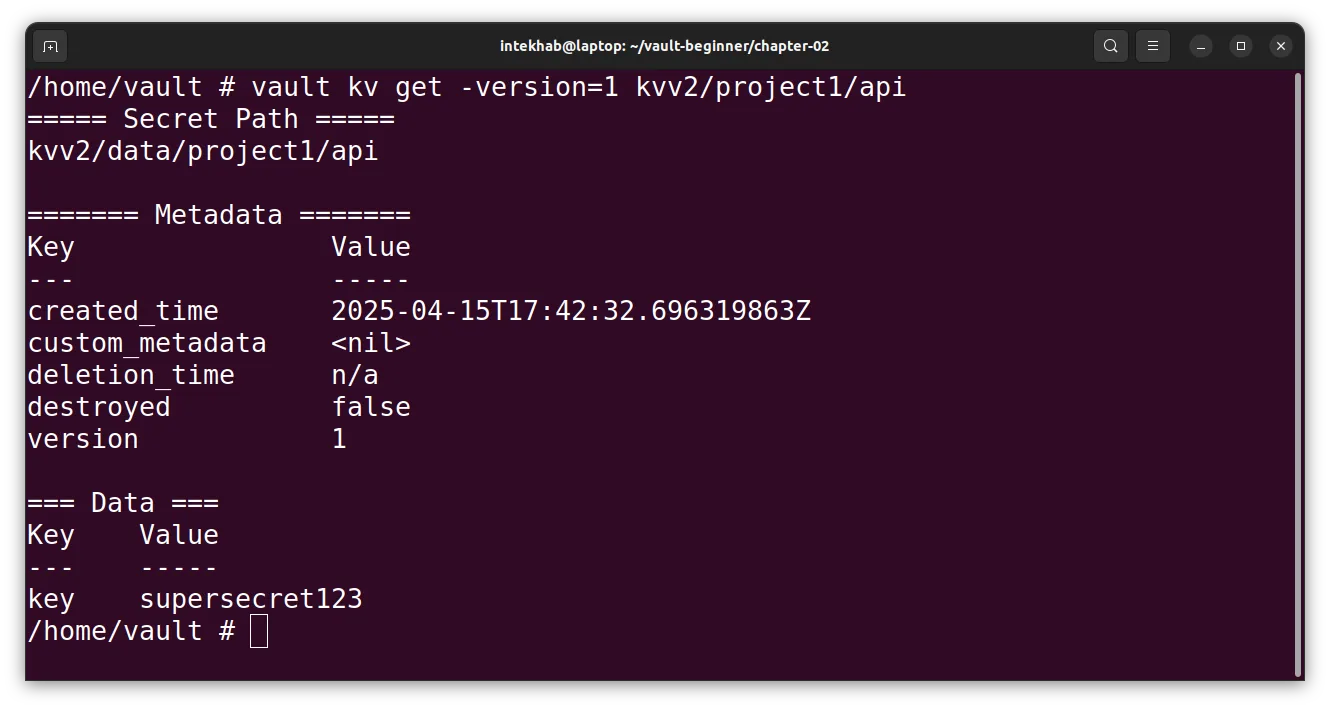
Want to see version 1?
vault kv get -version=1 kvv2/project1/api
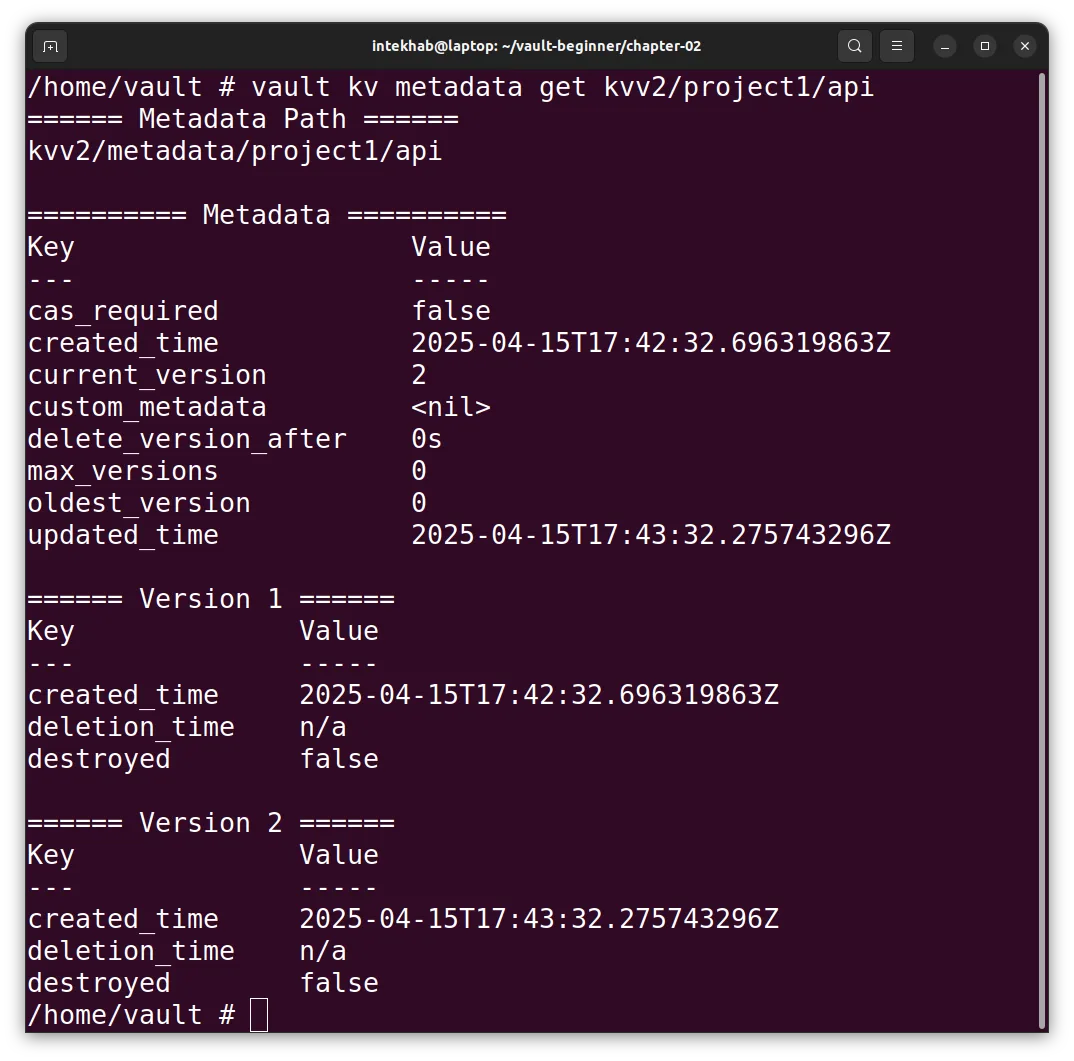
You can even inspect metadata:
vault kv metadata get kvv2/project1/api
This shows all versions, deletion flags, and timestamps.
Deleting and Undeleting
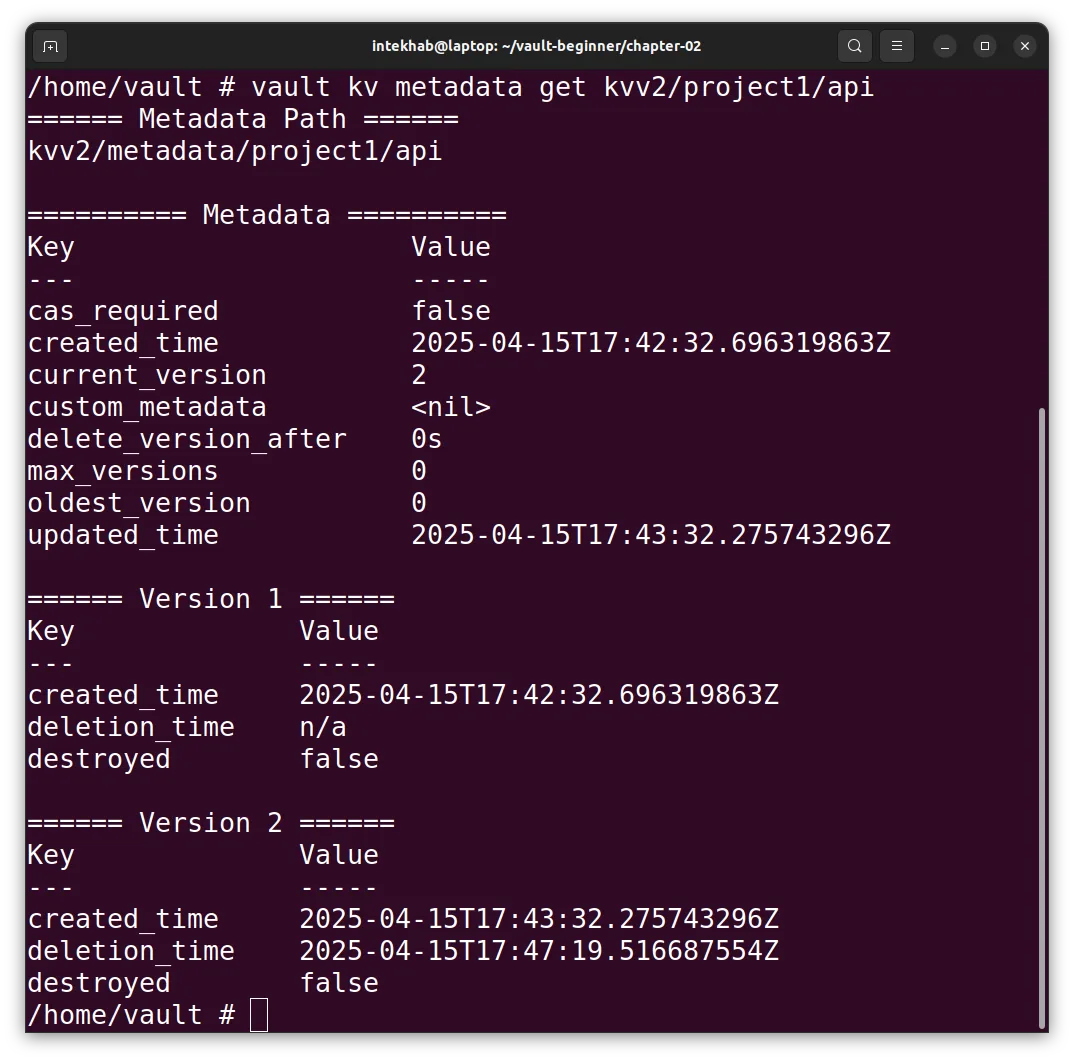
Want to delete a version?
vault kv delete kvv2/project1/api
Note: This is a soft delete — it only marks the latest version as deleted.
Or maybe you panicked and want to bring a deleted version back?
vault kv undelete -versions=2 kvv2/project1/api
Yes, Vault lets you undo a delete. Just like Ctrl+Z.
To really wipe it: That deletes version 2 permanently.
vault kv destroy -versions=2 kvv2/project1/api
Let’s write the data back into Vault, as we’ll need it in the upcoming chapter:
vault kv put kvv2/project1/api key=newvalue456
This ensures that the necessary secrets are available when we reference them later."
What’s This “/data/” and “/metadata/” Stuff?
With KV v2, there are actually two APIs under the hood:
/data/: For your actual secrets/metadata/: For managing and inspecting versions
This means when using the CLI or API, you need to know which part you're talking to.
You can think of it like this:
| Path Segment | What it Does |
|---|---|
/data/ | Put/get secrets (actual key-values) |
/metadata/ | List versions, delete metadata, etc. |
We’ll unpack the concept of paths more in the next chapter — they’re foundational to how Vault works.
Quick Comparison: KV v1 vs KV v2
| Feature | KV v1 | KV v2 |
|---|---|---|
| Versioning | No | Yes |
| Undelete | No | Yes |
| Metadata tracking | No | Yes |
| Extra path logic | Simple | Has /data/, /metadata/ |
What’s Next?
Now that you understand KV v2 and have your secrets version-controlled like a pro, it’s time to dig deeper into Vault’s architecture.
In the next chapter, we’ll explore paths and secrets engines — how Vault organizes and manages data internally, and why that structure matters more than you might think.