Chapter 24 / 28
Revoking and Regenerating the Root Token
HashiCorp Vault For Beginners6 min read
In a production Vault deployment, the root token is the most powerful credential in the system. It is designed to bypass all policies, granting full administrative access. While this makes it essential during setup and bootstrapping, retaining the root token after initial configuration introduces significant risk.
In this chapter, we’ll cover:
- Why revoking the root token is strongly recommended
- How to revoke the root token securely
- How to regenerate the root token using quorum
- Enabling a stable operational authentication method (e.g.,
userpass) beforehand - Understanding
mlock, the Vault data directory, and best practices - A complete walkthrough with all commands included
Why Revoke the Root Token?
The root token:
- Has unrestricted access to Vault.
- Bypasses policies and controls.
- If leaked or misused, compromises the entire Vault cluster.
Root Token in Production = Liability
Best practice:
- Use it to bootstrap Vault.
- Create real users and assign policies.
- Then revoke it.
Regeneration of the root token should be a deliberate, audited, multi-party operation, not a casual fallback.
Pre-Requisite: Enable the userpass Auth Method
Before revoking the root token, ensure you have an alternate administrative login.
Here, we'll use the built-in userpass auth method.
Step 1: Enable userpass Auth
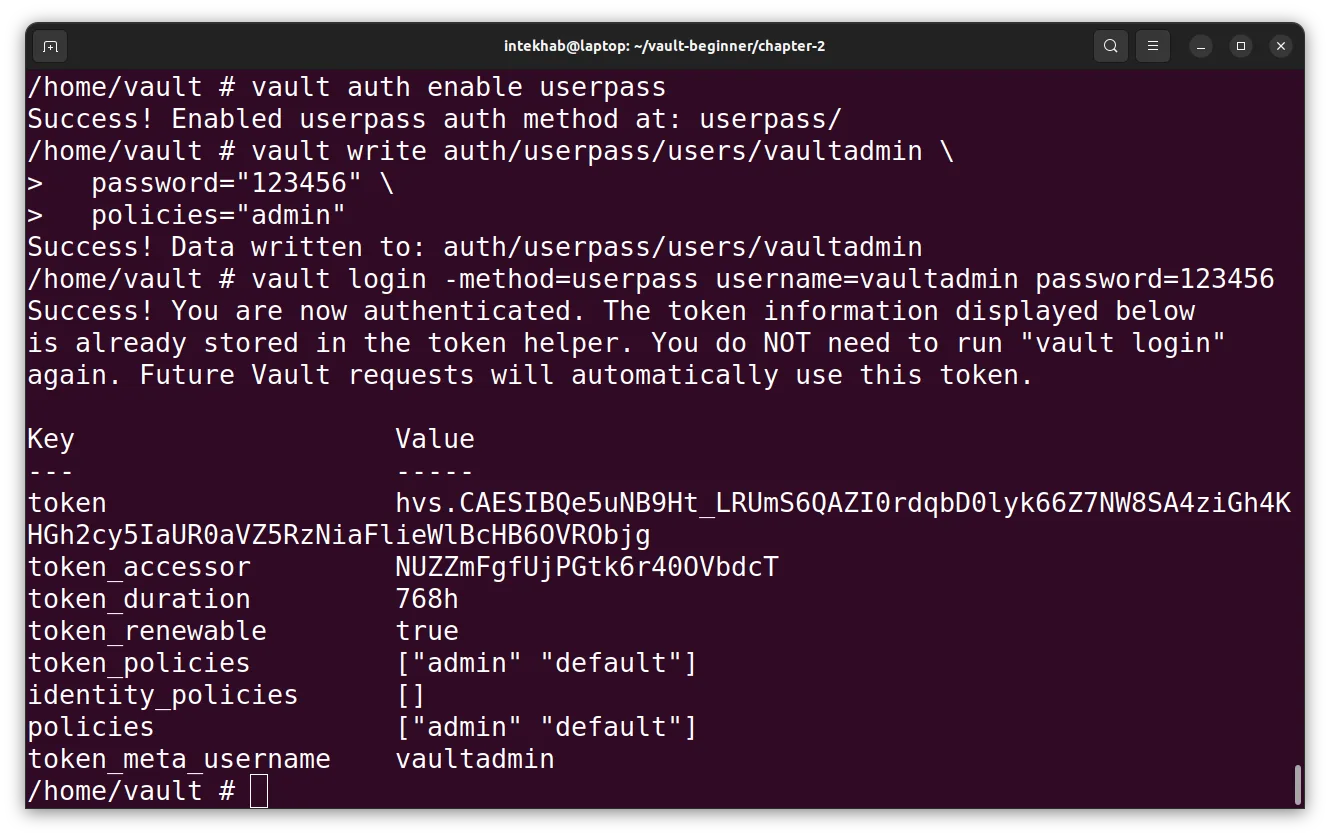
vault auth enable userpass
Step 2: Create an Admin Policy
Create a file admin-policy.hcl with below content:
path "*" {
  capabilities = ["create", "read", "update", "delete", "list", "sudo"]
}
Create the policy using the admin-policy.hcl:
vault policy write admin admin-policy.hcl
Make sure you are inside the same folder where you have saved the admin-policy.hcl
Step 3: Create a Vault Admin User
vault write auth/userpass/users/vaultadmin \
  password="123456" \
  policies="admin"
Login and verify:
vault login -method=userpass username=vaultadmin password=123456
The output of last there commands will be like below.
Now you're ready to retire the root token.
Revoking the Root Token
If you're logged in as root and want to revoke your own token:
vault token revoke -self
Or to revoke a specific root token:
vault token revoke <root_token>
Before revoking, always confirm another fully privileged user or group has operational access to Vault.
Regenerating the Root Token (When Needed)
Vault supports a secure, quorum-based process to regenerate the root token. This process ensures that no single person can generate the root token alone.
Step 1: Begin Root Token Regeneration Process
Start the root token generation process:
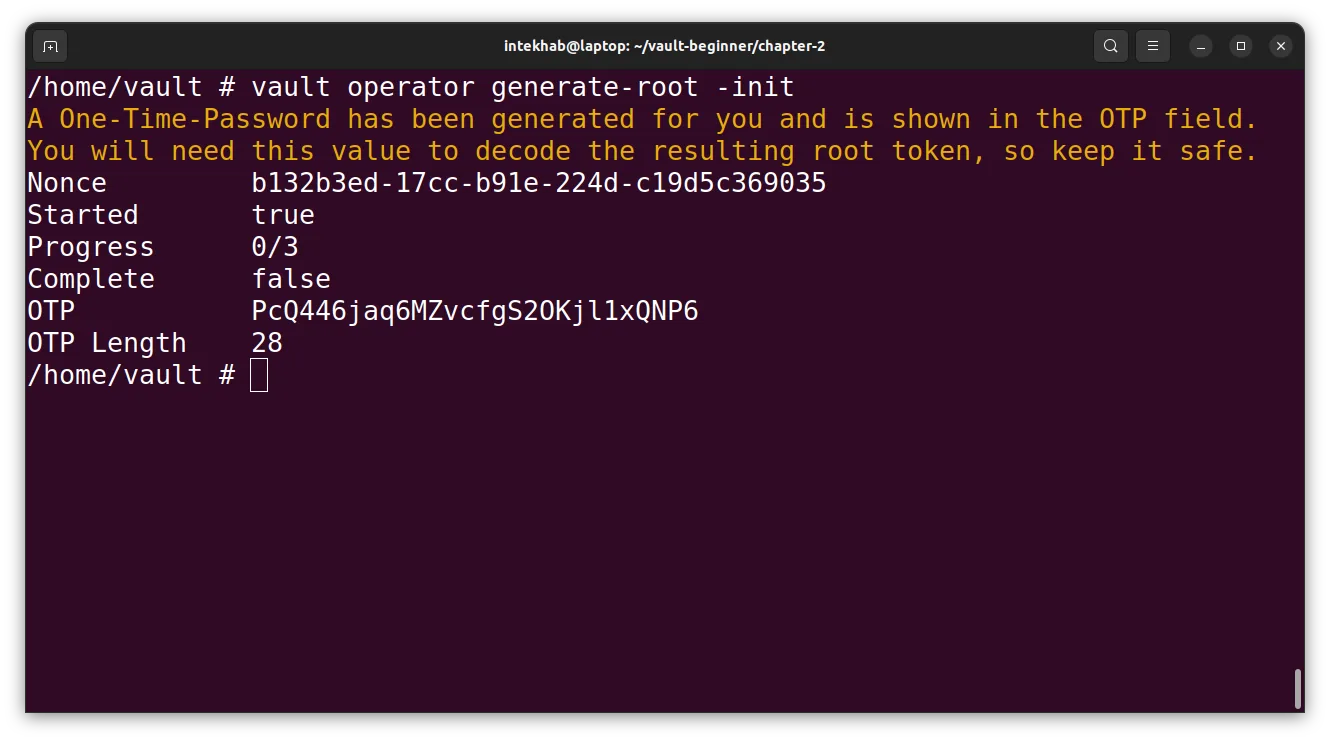
vault operator generate-root -init
You will receive two important values:
- One-Time OTP (OTP): A short-lived password used to encrypt the new root token.
- Nonce: A unique identifier for this regeneration attempt. It must be passed with every unseal key submission.
*What is OTP and Nonce?* The OTP is used to encrypt the root token. You’ll need it at the end to decrypt the result. The Nonce uniquely identifies this regeneration attempt. Without it, Vault won't accept unseal key submissions.
Example output:
Step 2: Provide Unseal Key Shares (With Nonce)
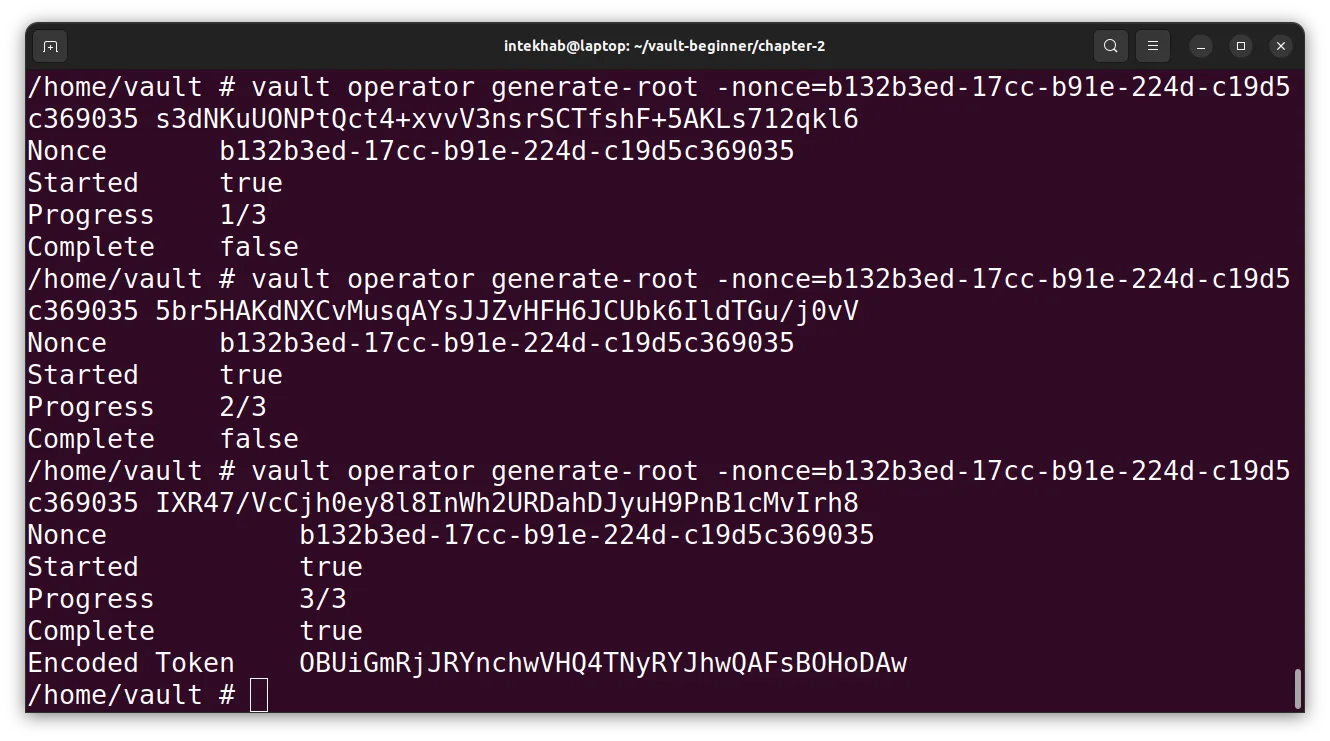
Each key holder submits their unseal key, along with the nonce:
vault operator generate-root -nonce=<nonce> <unseal_key>
Repeat this step with each unique key until the configured key threshold is met (e.g., 3 of 5 unseal keys).
Once quorum is reached, Vault outputs the Encoded Root Token.
Step 3: Decrypt the Root Token (Using OTP)
Vault returns the token like this:
Encoded Token: xxxxxxxxxx
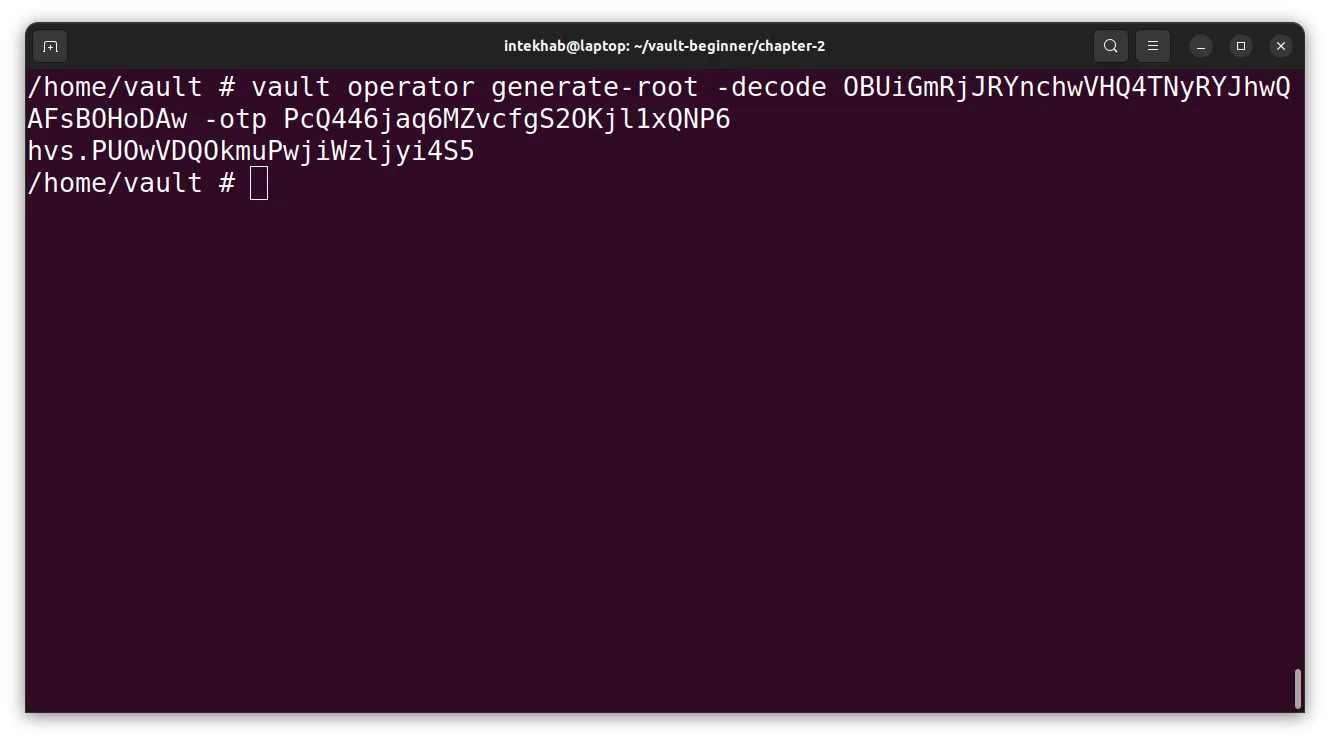
Now decrypt the encoded token using the OTP you received earlier:
vault operator generate-root -decode <encoded_token> -otp <One-time-otp>
You’ll then receive the actual root token.
Recap
- The root token should not be kept around in production systems.
- Always create admin users and test their login before revoking the root token.
- The root token can be regenerated using quorum-based approval from unseal key holders.
- Vault’s data directory and
mlocksettings are critical for performance and security.